 RMM
RMM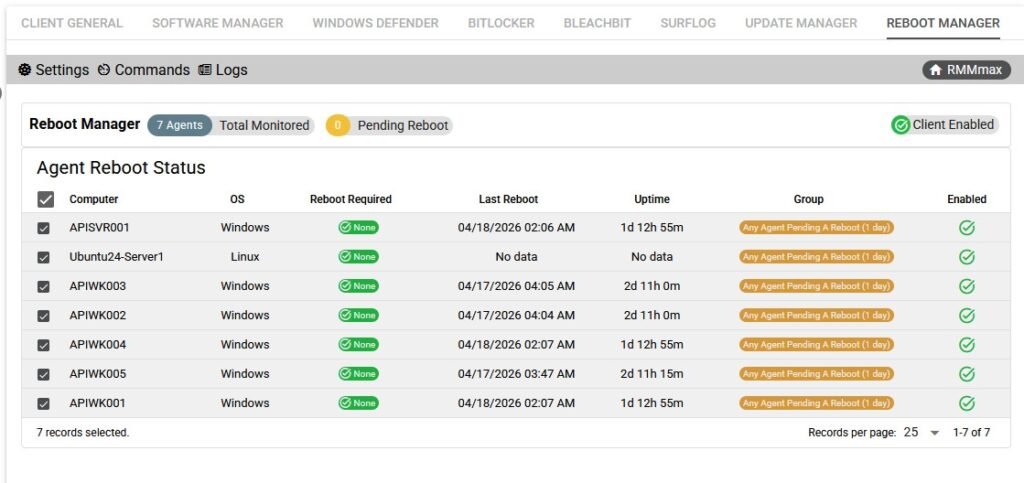
Client View of Reboot Manager in RMMmax
From the client’s perspective, Reboot Manager is a centralized dashboard that displays reboot status, reboot requirements, and available reboot actions for all devices assigned to that client. It provides visibility and control.
Below is the accurate breakdown of what the client sees and what they can do.
1. Device Status Overview
The main panel lists all devices under the client.
Each device row includes a hover‑over, when the user hovers on the agent name. It displays:
- Device Name
- Last Check‑In
- Current User (if available)
- Operating System
- Uptime
- Pending Reboot Status
- Reason for Pending Reboot (Windows Update, Software Install, BitLocker, etc.)
This gives the client a quick, at‑a‑glance understanding of which machines need attention.
2. Reboot Requirement Indicators
Each device displays one of several reboot states:
- No reboot required
- Reboot recommended
- Reboot required
- Reboot overdue (based on policy)
- Reboot blocked (e.g., BitLocker protection, user lockout, or other safety conditions)
These indicators help the client prioritize which systems need action.
3. Available Reboot Actions
Clients can perform reboot actions on individual devices or bulk‑select multiple devices.
Available actions include:
- Immediate Reboot Sends a reboot command to the device instantly.
- Graceful Reboot Attempts to close applications cleanly before rebooting.
- Forced Reboot Used when the system is unresponsive or blocking shutdown.
- Schedule Reboot Allows the client to choose:
- Date
- Time
- Time zone
- Optional user warning countdown
- Cancel Scheduled Reboot Removes any pending reboot tasks.
These actions appear only when both the client and agent are enabled for Reboot Manager.
4. Scheduling & Automation Visibility
Clients can view:
- Upcoming scheduled reboots
- Past reboot history
- Who initiated each reboot
- Whether the reboot succeeded or failed
This provides transparency and auditability for all reboot activity.
5. User Notification Options
Depending on configuration, the client may see options to:
- Display a warning message to the logged‑in user
- Set a countdown timer
- Allow the user to delay the reboot (if permitted)
- Force reboot even if a user is active
These options help minimize disruption while still enforcing necessary reboots.
6. Policy Awareness (Read‑Only)
Clients can view but cannot modify MSP‑defined policies, such as:
- Maximum allowed uptime
- Mandatory reboot windows
- Reboot deferral limits
- Safety rules (e.g., BitLocker protection checks)
This helps clients understand why certain devices show “Reboot Required” or “Reboot Overdue.”
7. Summary Metrics
At the top of the Reboot Manager view, clients typically see:
- Total enabled devices
- Devices pending reboot
- Devices recently rebooted
This provides a quick operational snapshot of reboot health across the environment.
In summary
The client view of Reboot Manager in RMMmax provides:
- Clear visibility into reboot needs
- Safe, controlled reboot actions
- Scheduling tools
- User notification options
- Reboot history and audit logs
- Read‑only policy awareness
It gives clients meaningful control without complexity, while still respecting the MSP’s global rules and safety constraints.